<?xml version="1.0" encoding="utf-8"?><feed xmlns="http://www.w3.org/2005/Atom" ><generator uri="https://jekyllrb.com/" version="3.10.0">Jekyll</generator><link href="https://gpotter2.github.io/feed.xml" rel="self" type="application/atom+xml" /><link href="https://gpotter2.github.io/" rel="alternate" type="text/html" /><updated>2026-05-09T14:25:08+00:00</updated><id>https://gpotter2.github.io/feed.xml</id><title type="html">gpotter2’s blog</title><subtitle>This is my personal blog regarding various topics I want to touch on, but mostly networking :)</subtitle><entry><title type="html">How does video work on Hyper-V, and how the hell do I get ‘Enhanced Session’ to actually work properly with a Linux VM?!</title><link href="https://gpotter2.github.io/blog/hyperv-video" rel="alternate" type="text/html" title="How does video work on Hyper-V, and how the hell do I get ‘Enhanced Session’ to actually work properly with a Linux VM?!" /><published>2026-05-08T22:00:00+00:00</published><updated>2026-05-08T22:00:00+00:00</updated><id>https://gpotter2.github.io/blog/enhanced-hyperv-xrdp</id><content type="html" xml:base="https://gpotter2.github.io/blog/hyperv-video"><![CDATA[<p>Sometimes, you want to run some Linux code that you don’t really trust and need the isolation that a full-fledged Hyper-V VM provides. I’ve always been annoyed at how worse the experience becomes when you start doing so compared to what WSL has to offer: you now need to follow one of the gazillion guides that explain “how to make Hyper-V Enhanced Session work” because you want that sweet copy &amp; paste feature, but end up copy pasting some random unexplained “disable tls security” stuff… I suspect that most of those guides simply copy/pasted some derivative of <a href="https://github.com/microsoft/linux-vm-tools/">Microsoft’s original instructions</a>, back when they provided first-party Ubuntu VMs and <a href="https://techcommunity.microsoft.com/blog/virtualization/sneak-peek-taking-a-spin-with-enhanced-linux-vms/382415">still cared</a>, but don’t actually understand a thing about the internals.</p>

<p>It would be pretty cool to understand how all of that actually works and generally what the hell is going on when one starts <code class="language-plaintext highlighter-rouge">vmconnect.exe</code>. Or WSL for that matter. <em>Okay, let’s do this one last time, yeah? For real this time.</em></p>

<h1 id="tldr---how-do-i-configure-hyper-v-and-xrdp-">tl;dr - how do I configure Hyper-V and xrdp ?</h1>

<p>In 2026 you need the following. You DON’T need to touch anything related to TLS, RDP encryption or whatnot.</p>

<ul>
  <li>install xrdp v0.14 or later, configure <code class="language-plaintext highlighter-rouge">/etc/xrdp/xrdp.ini</code> :
    <div class="language-plaintext highlighter-rouge"><div class="highlight"><pre class="highlight"><code>port=vsock://1:3389
vmconnect=true
</code></pre></div>    </div>
  </li>
  <li>(sound) install <a href="https://packages.debian.org/sid/pipewire-module-xrdp"><code class="language-plaintext highlighter-rouge">pipewire-module-xrdp</code></a> (debian), for other plateforms: <a href="https://github.com/neutrinolabs/xrdp/wiki/How-to-set-up-audio-redirection">https://github.com/neutrinolabs/xrdp/wiki/How-to-set-up-audio-redirection</a></li>
  <li>On HyperV: <code class="language-plaintext highlighter-rouge">Set-VM -EnhancedSessionTransportType HvSocket &lt;VMNAME&gt;</code></li>
</ul>

<h1 id="how-video-works-on-hyper-v">How video works on Hyper-V</h1>

<p>You opened <code class="language-plaintext highlighter-rouge">vmconnect.exe</code>, you see picture. What happened behind the scenes? Well… it depends. On a bunch of parameters actually, because Hyper-V has had a pretty long life and so had its video components. The main three things that impact the flow are:</p>

<ul>
  <li>the VM generation;</li>
  <li>the OS;</li>
  <li>whether “Enhanced Session” or “Basic Session” is used.</li>
</ul>

<p>The issue with “Basic Sessions” is that they are not super user-friendly. You can’t copy/paste text nor files, can’t resize the screen, can’t use a webcam and so on. That’s why Microsoft provided an upgrade to that with the “Enhanced Session” mode, which works completely differently.</p>

<table>
  <thead>
    <tr>
      <th>Server-side</th>
      <th>VM gen 1</th>
      <th>VM gen 2</th>
    </tr>
  </thead>
  <tbody>
    <tr>
      <td>“Basic Session”</td>
      <td><a href="https://learn.microsoft.com/en-us/windows/win32/hyperv_v2/msvm-s3displaycontroller">Emulated S3 controller</a></td>
      <td><a href="https://learn.microsoft.com/en-us/windows/win32/hyperv_v2/msvm-syntheticdisplaycontroller">Synthetic display controller</a></td>
    </tr>
    <tr>
      <td>“Enhanced Session”</td>
      <td>RDP</td>
      <td>RDP</td>
    </tr>
  </tbody>
</table>

<p>On a <strong>Basic Session</strong>:</p>
<ul>
  <li><strong>Generation 1</strong> The Hyper-V host uses an “Emulated S3 controller” (<code class="language-plaintext highlighter-rouge">vms3cap.sys</code>). It’s an entirely emulated video card that is detected as actual hardware by your VM. This required no adaptation from an OS to Hyper-V, but it has the downside of requiring a bunch of emulation which impacts not only performance but also increases “the attack surface”, as Microsoft <a href="https://learn.microsoft.com/en-us/windows-server/virtualization/hyper-v/plan/Should-I-create-a-generation-1-or-2-virtual-machine-in-Hyper-V#whats-the-difference-in-device-support">puts it</a>.</li>
  <li><strong>Generation 2</strong> VMs use a “Synthetic display controller”, which is “software based” meaning that it requires a specific driver inside the VM kernel. Hyper-V uses the “VMBUS” (a communication channel between the Host and the VM, see <a href="https://learn.microsoft.com/en-us/windows-server/virtualization/hyper-v/architecture#vmbus-vsp-and-vsc">this</a>) to talk to the VM whose kernel is responsible for creating a virtual display adapter.
    <ul>
      <li>On Windows, this has obviously been integrated day-1 inside the <code class="language-plaintext highlighter-rouge">HyperVideo.sys</code> driver (“Microsoft VMBus Video Device Miniport Driver”) driver.</li>
      <li>On Linux, this started as an <a href="https://github.com/microsoft/LIS3.5/tree/master">“integration pack”</a> before getting contributed by Microsoft to the linux kernel back in 2012 as the <a href="https://github.com/torvalds/linux/blob/68eeb0871e986ae5462439dae881e3a27bcef85f/drivers/video/fbdev/hyperv_fb.c">“Hyper-V Frame Buffer driver” (or hyperv_fb)</a>. This driver was <a href="https://github.com/torvalds/linux/commit/40227f2efcfb7148fdee8d69ba52301951ef8a32">replaced in 2021</a> by a DRM-compatible variant (<a href="https://github.com/torvalds/linux/tree/master/drivers/gpu/drm/hyperv">hyperv_drm</a>), but essentially works in the same way as it did back in 2012. It’s built on an <a href="https://github.com/torvalds/linux/blob/68eeb0871e986ae5462439dae881e3a27bcef85f/drivers/hv/vmbus_drv.c">implementation of the VMBUS</a> bundled in the linux kernel, also contributed by Microsoft, very similarly to Windows.</li>
    </ul>
  </li>
</ul>

<p>On an <strong>Enhanced Session</strong>:</p>
<ul>
  <li>A RDP server needs to run inside the VM. It sends video but also allows for integration services, copy/pasting, sharing devices, etc.</li>
  <li>On Windows, this is implemented directly by ‘Remote Desktop Services’ that listens directly on the VMBUS.</li>
  <li>On Linux, this has <strong>no implementation in the Linux Kernel</strong>. This is implemented in userland, typically with a server like <code class="language-plaintext highlighter-rouge">xrdp</code> (typical for Hyper-V) or <code class="language-plaintext highlighter-rouge">weston</code> (WSL). Because those are in userland, they can’t easily use the VMBUS and therefore bind a special kind of socket (<code class="language-plaintext highlighter-rouge">AF_HYPERV</code> / <code class="language-plaintext highlighter-rouge">AF_VSOCK</code>) on port 3389, which provides a socket-like mechanism over VMBUS. Note that while <code class="language-plaintext highlighter-rouge">AF_VSOCK</code> uses ports, <code class="language-plaintext highlighter-rouge">AF_HYPERV</code> uses GUIDs, so 3389 is <a href="https://learn.microsoft.com/en-us/windows-server/virtualization/hyper-v/make-integration-service#register-a-new-application">actually converted into</a> <code class="language-plaintext highlighter-rouge">00000d3d-facb-11e6-bd58-64006a7986d3</code>.</li>
</ul>

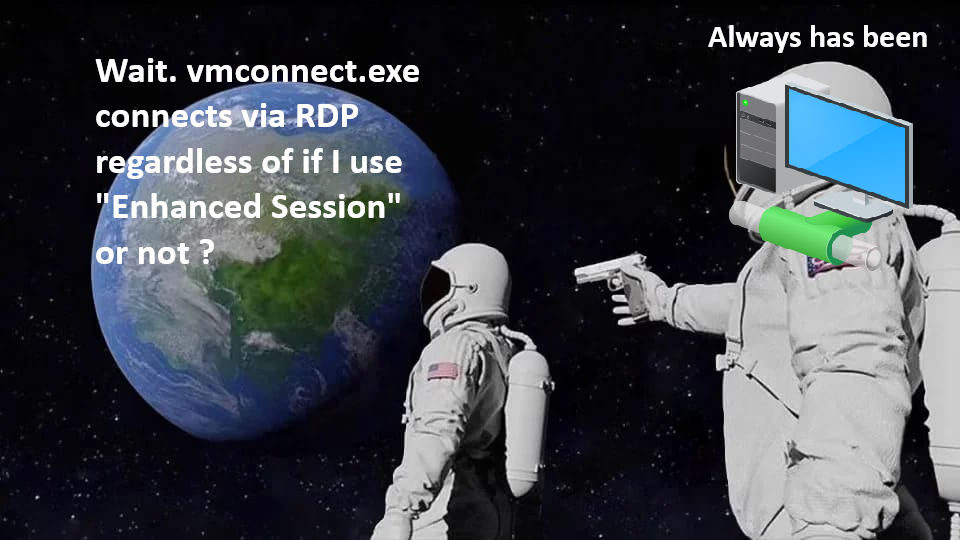
<p>What about the client side? What actually comes out of <code class="language-plaintext highlighter-rouge">vmconnect.exe</code>? RDP. It’s only RDP.</p>

<p><img src="/assets/posts/2026-04-06-enhanced-hyperv-xrdp/rdp-always-has-been.png" alt="" /></p>

<p>The connection flow is as follows:</p>
<ul>
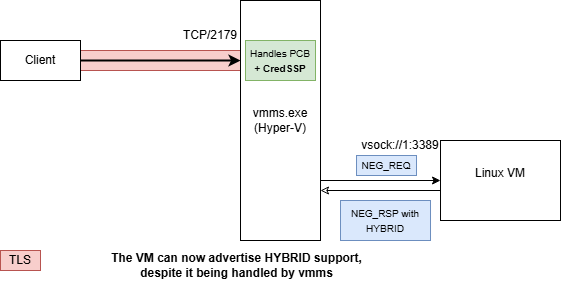
  <li>The <code class="language-plaintext highlighter-rouge">vmconnect.exe</code> connects to the Hyper-V Virtual Machine Management service <code class="language-plaintext highlighter-rouge">vmms.exe</code> (yeah, the same that manages the VMs, handles Hyper-V WMI commands, etc.) on port TCP/2179. The fact that it’s a TCP port allows <code class="language-plaintext highlighter-rouge">vmconnect.exe</code> to connect remotely.</li>
  <li>The <code class="language-plaintext highlighter-rouge">vmconnect.exe</code> sends a special blob called the PCB (“Pre-Connection Blob”) that contains the GUID of the VM to connect to. This blob is specific to Hyper-V RDP, you wouldn’t find it in a connection generated from a <code class="language-plaintext highlighter-rouge">mstsc</code> to a remote Windows host. <code class="language-plaintext highlighter-rouge">vmms.exe</code> looks at the GUID to find the VM the user wants to connect to, but also handles authentication. When the “Enhanced Session” mode was added, the PCB was extended to have an extra <code class="language-plaintext highlighter-rouge">;EnhancedMode=1</code> suffix which indicates whether “Enhanced Session” is used or not.</li>
  <li>If <code class="language-plaintext highlighter-rouge">EnhancedMode</code> is 0, then the RDP terminates in <code class="language-plaintext highlighter-rouge">vmms.exe</code> and Hyper-V feeds it the frames provided by the display controller of the VM matching the GUID in the PCB. If <code class="language-plaintext highlighter-rouge">EnhancedMode</code> is 1, it forwards the RDP stream to the VM so that it handles it by itself.</li>
  <li>Modern RDP clients wrap their connection in TLS. What’s a bit weird in this setup is that the TLS needs to happen between the <code class="language-plaintext highlighter-rouge">vmconnect.exe</code> client and <code class="language-plaintext highlighter-rouge">vmms.exe</code> as it handles the authentication. It wouldn’t make sense to have to re-TLS the RDP stream between <code class="language-plaintext highlighter-rouge">vmms.exe</code> and the RDP server. The server therefore needs to be configured in a special mode, where it <em>says</em> that it supports TLS during the RDP negotiation, even though TLS actually never arrives because it’s eaten by <code class="language-plaintext highlighter-rouge">vmms.exe</code>.</li>
</ul>

<p align="center">
  <img src="/assets/posts/2026-04-06-enhanced-hyperv-xrdp/rdp-hv-vmms.png" alt="Centered image" />
  <br />
  <a href="https://github.com/neutrinolabs/xrdp/pull/3514">PR #3514 from xrdp</a> showing the TLS is only between the client and vmms.exe
</p>

<p><code class="language-plaintext highlighter-rouge">xrdp</code> (nor most RDP servers on Linux) did not implement this special edge-case, which meant that it crash when receiving unencrypted trafic after having advertised TLS. This is why so many guides disable TLS in the server, leading the client to fallback to “RDP security”, which doesn’t have this edge case. This however means that setting the GPO to enforce TLS security (as you should) would break Enhanced Sessions on Linux. I ended up <a href="https://github.com/neutrinolabs/xrdp/pull/3514">contributing a PR</a> back in 2025 which ended up in xrdp v0.10.4.0 to add support for this mode, meaning you no longer mean to force the legacy “RDP encryption”. This took the form of adding the following attribute to the configuration.</p>

<div class="language-plaintext highlighter-rouge"><div class="highlight"><pre class="highlight"><code>vmconnect=true
</code></pre></div></div>

<h1 id="bonus-use-alternative-rdp-clients-to-connect-to-hyper-v-vms">(Bonus) Use alternative RDP clients to connect to Hyper-V VMs</h1>

<h3 id="vmconnectexe"><strong>vmconnect.exe</strong></h3>

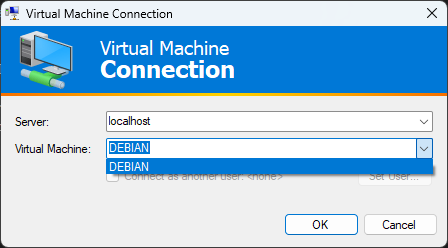
<p>Nothing to be said, it’s what the console uses by default. Did you know you could run it directly? Make sure to launch it with UAC (Windows+R then <code class="language-plaintext highlighter-rouge">vmconnect.exe</code> and Shift+Enter).</p>

<p><img src="/assets/posts/2026-04-06-enhanced-hyperv-xrdp/vmconnect.png" alt="" /></p>

<h3 id="mstscexe-native-windows"><strong>mstsc.exe</strong> (native Windows)</h3>

<ol>
  <li>Get the VM id through <code class="language-plaintext highlighter-rouge">Get-VM -Name &lt;Your VM Name&gt; | fl Id</code></li>
  <li>Create a <code class="language-plaintext highlighter-rouge">.rdp</code> file with at least:
    <div class="language-plaintext highlighter-rouge"><div class="highlight"><pre class="highlight"><code>full address:s:&lt;Hyper-V machine name. Use FQDN so that kerberos works&gt;
pcb:s:&lt;Hyper-V VM ID&gt;;EnhancedMode=1
server port:i:2179
negotiate security layer:i:0
sawvmconnect:i:1
</code></pre></div>    </div>
  </li>
</ol>

<p>A few notes:</p>
<ul>
  <li><code class="language-plaintext highlighter-rouge">pcb</code> is the “PCB”, sent before the connection is actually established as explained before should point towards the ID of the VM. It has an extra field <code class="language-plaintext highlighter-rouge">;EnhancedMode=</code> which, you guessed it, can be 0 or 1 and tells <code class="language-plaintext highlighter-rouge">vmms.exe</code> whether you’d like it to try to use the Synthetic controller (Basic Session) or RDP (Enhanced Session) to talk to the VM.</li>
  <li><code class="language-plaintext highlighter-rouge">sawvmconnect</code> is some reverse-engineered magic parameter I found that sets the used SPN to “Microsoft Virtual Console Service/XXXX”. It also disables CredSSP, so it won’t prompt for a password and use Kerberos (hurrah). This should help a lot in hardened environments.</li>
</ul>

<h3 id="msrdcexe-windows-app--wsl--microsoft-remote-desktop"><strong>msrdc.exe</strong> (Windows App / WSL / Microsoft Remote Desktop)</h3>

<p><code class="language-plaintext highlighter-rouge">msrdc</code> is an alternative, “newer” than <code class="language-plaintext highlighter-rouge">mstsc</code>. It has the advantage of being able to use some newer, pretty cool features like <a href="https://learn.microsoft.com/en-us/azure/virtual-desktop/multimedia-redirection-video-playback-calls?tabs=intune&amp;pivots=azure-virtual-desktop">Multi Media Redirection</a> which allows to stream High FPS video from your VM.</p>

<ol>
  <li>Same as for <code class="language-plaintext highlighter-rouge">mstsc.exe</code>;</li>
  <li><code class="language-plaintext highlighter-rouge">sawvmconnect:i:1</code> isn’t implemented. In a hardened environment, you can work around that by setting the GPO
    <blockquote>
      <p>Computer Configuration &gt; Administrative templates &gt; System &gt; Credentials Delegation &gt;
“Restrict delegation of credentials to remote servers” = Restrict Credential Delegation (at least, RestrictedAdmin also works but is more restrictive)</p>
    </blockquote>
  </li>
  <li>You can add the following to have a dynamic resizing
    <div class="language-plaintext highlighter-rouge"><div class="highlight"><pre class="highlight"><code>dynamic resolution:i:1
</code></pre></div>    </div>
  </li>
</ol>

<p>Setting the GPO will have an impact on you other usages of RDP which might be an issue in corporate environments (you will need to enable RestrictedAdmin/Remote Credential Guard on all other machines via GPO, or your client won’t be able to connect anymore). This is good in terms of security though.</p>]]></content><author><name></name></author><category term="hyper-v" /><category term="rdp" /><category term="xrdp" /><summary type="html"><![CDATA[Sometimes, you want to run some Linux code that you don’t really trust and need the isolation that a full-fledged Hyper-V VM provides. I’ve always been annoyed at how worse the experience becomes when you start doing so compared to what WSL has to offer: you now need to follow one of the gazillion guides that explain “how to make Hyper-V Enhanced Session work” because you want that sweet copy &amp; paste feature, but end up copy pasting some random unexplained “disable tls security” stuff… I suspect that most of those guides simply copy/pasted some derivative of Microsoft’s original instructions, back when they provided first-party Ubuntu VMs and still cared, but don’t actually understand a thing about the internals.]]></summary></entry></feed>